Bookmarks
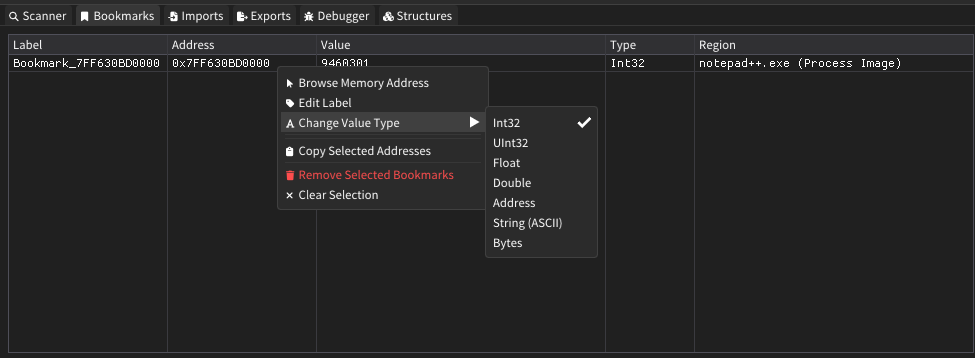
The bookmarks feature in Memril allows you to save and manage important memory addresses for quick access and monitoring. You can track values at specific memory locations, modify them, and even freeze values to prevent changes.
Overview
Bookmarks provide a powerful way to:
- Save frequently accessed memory addresses with custom labels
- Monitor values at specific memory locations in real-time
- Modify memory values directly from the bookmarks interface
- Freeze values to prevent them from changing
- Quickly navigate to bookmarked addresses in the hex view
Creating Bookmarks
From Other Windows
The easiest way to create a bookmark is directly from most of the other windows, such as the hex view:
- Right-click on any value in the hex editor
- Select "Add Bookmark" from the context menu
- The bookmark will be created with the detected value type
Manual Addition
You can also manually add bookmarks by address:
- Right-click in the bookmarks window
- Select "Add Address" from the context menu
- Enter the hexadecimal address (e.g.,
0x7FF123456789) - Click "Add" to create the bookmark
Managing Bookmarks
Editing Labels
Each bookmark has a customizable label for easy identification:
- Right-click on a bookmark
- Select "Edit Label"
- Enter a descriptive name
- Press Enter or click "Save"
Changing Value Types
Bookmarks automatically detect value types, but you can change them:
- Right-click on a bookmark
- Select "Change Value Type"
- Choose from:
- Int32 - Signed 32-bit integer
- UInt32 - Unsigned 32-bit integer
- Float - Single-precision floating point
- Double - Double-precision floating point
- Address - 64-bit pointer
- String (ASCII) - Text string
- Bytes - Raw byte data
For String and Bytes types, you can also specify the size.
Value Modification
Direct Modification
To modify values at bookmarked addresses:
- Select one or more bookmarks (use Ctrl+Click or Shift+Click for multiple selection)
- Right-click and select "Modify Selected Values"
- Enter the new value
- Optionally check "Freeze Value" to keep it constant
- Click "Apply"
Value Freezing
Frozen values are automatically restored if the program tries to change them:
- Frozen bookmarks display a pause icon (⏸️)
- To freeze: Right-click → "Freeze Selected Values"
- To unfreeze: Right-click → "Unfreeze Selected Values"
Navigation
Double-click any bookmark to:
- Navigate to that address in the hex view
- Update the selected memory region
- Highlight the specific value
Bookmark Table
The bookmarks window displays information in columns:
| Column | Description |
|---|---|
| Label | Custom name for the bookmark |
| Address | Virtual memory address |
| Value | Current value at the address |
| Type | Data type of the value |
| Region | Memory region containing the address |
Tips
- Use descriptive labels - Name bookmarks based on their purpose
- Monitor frozen values - Frozen values are updated every frame, which may impact performance with many frozen bookmarks
- Value validation - The system validates addresses before creating bookmarks to ensure they're accessible
Technical Details
Bookmarks store both virtual and mapped addresses, ensuring they remain valid even when memory mappings change. Each bookmark maintains:
- Virtual address in the target process
- Mapped address in the analysis tool's memory space
- Reference to the containing memory page
- Value type and size information
- Frozen state and frozen value data
This design ensures bookmarks remain functional throughout your analysis session, automatically adapting to memory layout changes.