Scanner
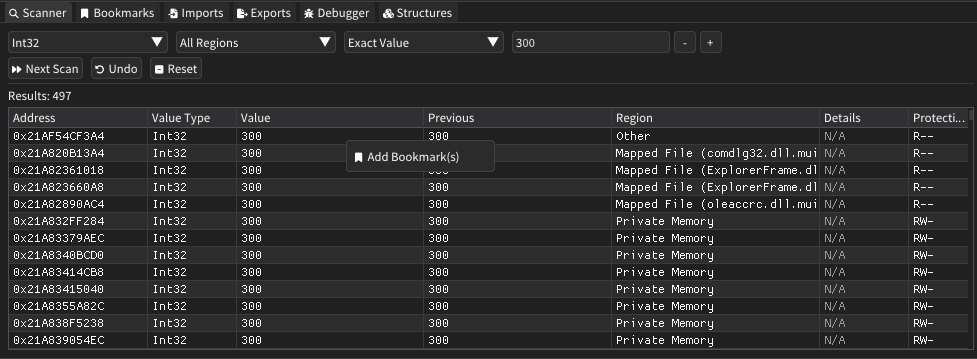
The Scanner window provides powerful memory scanning capabilities for finding specific values and patterns within process memory. It supports multiple data types, scan conditions, and filtering options to help locate and track memory values across different memory regions.
Features
Value Type Support
- Numeric Types: Byte, Int32, UInt32, Float, Double for numerical value searches
- Address Scanning: Direct memory address pattern matching
- String Search: Text string location within memory regions
- Pattern Matching: Byte pattern searches with wildcard support (e.g., "90 ?? ?? E9")
Scan Types
- Exact Value: Find precise matches for specified values
- Comparative Scans: Search for values bigger than, smaller than, or within a range
- Unknown Initial: Capture all values for subsequent change-based filtering
- Change Detection: Track values that have increased, decreased, changed, or remained unchanged
Region Filtering
- Process Image: Scan within the main executable's memory space
- System DLLs: Focus on system library memory regions
- Modules: Target specific loaded modules and libraries
- Mapped Files: Search memory-mapped file regions
- Private Memory: Scan process-private memory allocations
- Drivers: Include kernel driver memory regions in scans
How It Works
The Scanner operates by iterating through mapped virtual memory pages and comparing byte sequences against specified criteria. For initial scans, it examines all accessible memory within the selected regions. Subsequent scans filter previous results based on current memory state, enabling efficient narrowing of search results.
The scanning engine uses specialized algorithms for each data type and employs batch processing to handle large memory regions efficiently. Pattern matching supports wildcard bytes (represented as "??") for flexible byte sequence detection.
User Interface
Scan Controls
| Component | Description |
|---|---|
| Value Type | Select the data type for scanning (Byte, Int32, Float, etc.) |
| Region Filter | Choose which memory regions to include in the scan |
| Scan Type | Specify the comparison method (Exact, Range, Changed, etc.) |
| Value Input | Enter the target value or pattern to search for |
| Range Input | Provide end value for range-based scans |
Scan Buttons
- First Scan: Initiate the initial memory scan with current parameters
- Next Scan: Apply filtering to existing results based on new criteria
- Undo: Revert to the previous scan state in the scan history
- Reset: Clear all scan results and start fresh
Results Table
| Column | Description |
|---|---|
| Address | Virtual memory address where the value was found |
| Value Type | Data type interpretation of the found value |
| Value | Current value at the memory location (red if changed) |
| Previous | Previous value from the last scan iteration |
| Region | Memory region type and associated file if applicable |
| Details | Additional context such as section name |
| Protection | Memory protection flags for the containing page |
Selection and Interaction
- Multi-Selection: Use Ctrl+Click for individual selections, Shift+Click for ranges
- Bookmark Creation: Right-click selected results to add memory bookmarks
- Real-Time Updates: Values update automatically and highlight changes in red
- Result Navigation: Scroll through large result sets with efficient rendering
Advanced Features
Pattern Matching
- Wildcard Support: Use "??" to represent unknown bytes in patterns
- Flexible Syntax: Space-separated hex bytes with wildcard placeholders
- Binary Search: Efficient pattern matching algorithms for large memory regions
Change Tracking
- Value History: Maintains previous values for comparison across scan iterations
- Visual Indicators: Color-coded display shows which values have changed since last scan
- Scan History: Undo functionality preserves complete scan state history
Performance Optimization
- Batch Processing: Processes scan results in optimized chunks for responsiveness
- Memory Efficiency: Strategic memory allocation reduces overhead during large scans
- Result Limiting: Intelligent result management prevents UI performance degradation
Usage Tips
- Start with "Unknown Initial" scans to capture baseline values, then use "Changed"/"Unchanged" to narrow results
- Use region filters to focus scans on specific areas and improve performance
- Pattern scanning is ideal for finding code signatures or data structures
- Range scans work well for values that fluctuate within known bounds
- Combine multiple scan iterations to progressively narrow down target values
- Add frequently accessed values as bookmarks for easy monitoring
- Use the undo feature to backtrack if a scan filter was too restrictive
- Monitor the red highlighting to identify actively changing memory locations
- Consider the value type carefully - integers and floats require different search approaches
- Large initial scans may take time; be patient and consider applying region filters